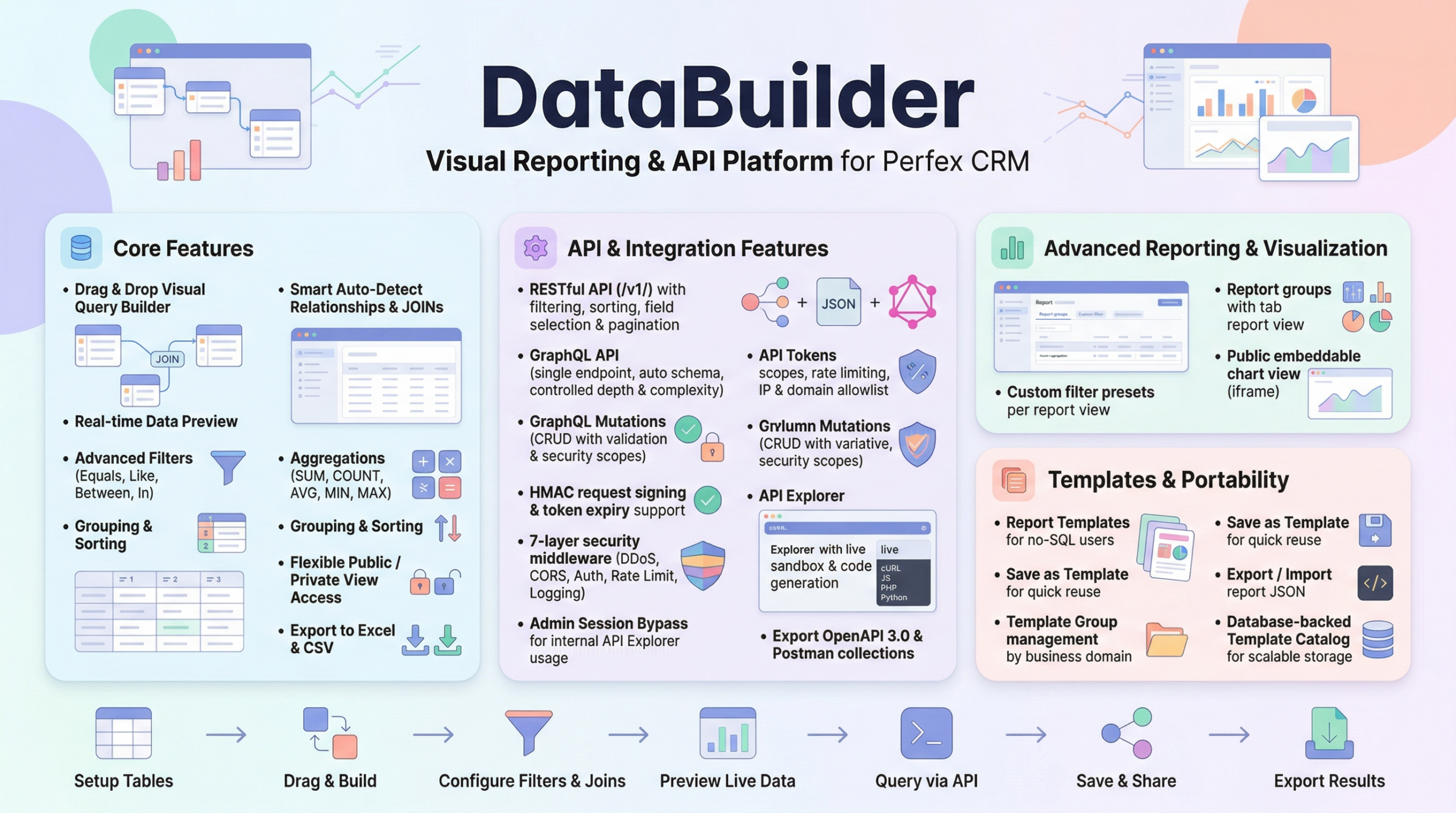
Before diving into the tutorial, it’s important to understand the core engine behind Data Builder. Report Templates are simply a curated list of popular data reports provided for your convenience to easily use, apply, and adjust.
The primary feature here is actually the View Builder. This is a powerful engine that empowers you to create any type of report based on data relationships within the core Perfex CRM database, as well as third-party modules such as Accounting, SaaS, WooSync, or even the Data Builder module itself.
The Challenge
A very common request we see from Perfex CRM administrators is:
> “I need a report to see the logged time for this week, this month or last month, filtered by a specific staff member and a specific customer. Do I need to build a new SQL template to include the customer data?”
Traditionally, answering this question meant calling a developer to write a new SQL query joining multiple tables. If you wanted to check a different staff member tomorrow, you’d have to modify the query or build complex parameter handling.
With Data Builder for Perfex CRM, you do not need to create a new template. The solution is much simpler and more powerful: utilizing Dynamic Filters (Saved Filters) and Dynamic Date Macros on top of the built-in comprehensive templates.
Here is a step-by-step guide on how to achieve exactly this use case.
Step 1: Start with the Right Template
Instead of starting from scratch, we will use a pre-built template that already maps all the necessary relationships.
Important Note on Default Filters
By default, when you apply this template, the report is configured to always display the timesheet for the current week. This is controlled by a default WHERE Condition in the report view builder:
* Condition: Start Time >= {{CURRENT_WEEK_START}}
What does {{CURRENT_WEEK_START}} do? This is a dynamic date macro that automatically returns the start date and time of the current week (e.g., Monday 00:00:00).
> Crucial Step: If you want to expand your timesheet filters to include other conditions like 7 days ago, this month, last month, today, this year, last year, or filter by specific staff members across all time, you must remove this default condition from the Report View Builder first before saving and viewing the report.
Step 2: Use the Runtime Filter Builder
Once you have removed the default condition and are viewing the Data Builder runtime table (Preview Data), you can use the visual filter interface to slice the data exactly how you need it.
Click the “+ Condition” button above the data table to start building your specific filters.
A. Filter by Dynamic Date Ranges (Using Macros)
Data Builder provides powerful Dynamic Date Macros that calculate relative dates on the fly. This means you never have to manually pick dates again. Below are the most common use cases:
This Week
View all hours logged from the beginning of the current week up to now.Column: Start Time
Operator: >= (Greater than or equal to)
Value: {{CURRENT_WEEK_START}}
This Month
View all hours logged since the 1st day of the current month.Column: Start Time
Operator: >=
Value: {{CURRENT_MONTH_START}}
= {{CURMONTH}} depending on the exact column format).Today
Daily review of logged hours.Column: Start Time
Operator: >= (or = for date-only columns)
Value: {{CURDATE}}
7 Days Ago (Rolling Week)
View hours logged in the exact past 7 days, regardless of the start of the week.Column: Start Time
Operator: >=
Value: {{CURDATE-7}}
Other available Date Macros you can use:
{{CURDATE-1}}  : Returns Yesterday's date.
{{CURDATE-30}} : Returns the date exactly 30 days ago.
{{CURMONTH-1}} : Returns the value for Last Month.
{{CURYEAR-1}}  : Returns the value for Last Year.
B. Filter by Staff Member
Next, we narrow the data down to a specific employee.
C. Filter by Customer
Finally, we isolate the timesheets for a specific client.
Step 3: Save as a Custom Preset (Saved Filter)
Click Apply. The table will instantly update to show your filtered results (e.g., Only Admin’s logged hours for this week).
But we don’t want to rebuild these filters every time we need this report!
Your saved filters will now appear as quick-access buttons (tabs) right above the filter bar. You can create dozens of these saved views pointing to the same single report!
The Result: One Template, Infinite Reports
By leveraging the Saved Filters and Dynamic Macros features, you have solved the problem efficiently:
* No Code: You didn’t write a single line of SQL. * One Click Access: Next time you need a report, simply click your saved tab like “This Month” or “Today”. The macros automatically calculate the correct dates. * Highly Scalable: You can create customized views for every manager and every client without duplicating templates.
See It in Action
You can try out this exact report and see how the filters work on our live demo site:
Leave a Reply